Rebuilding the Infrastructure with Terraform
Part 8 of the AWS Cloud Resume Challenge.
After completing the frontend and backend portions of my Cloud Resume Challenge using the AWS console, I reached an important realization. While manually configuring infrastructure is useful for learning, it is not how production cloud environments are managed.
Modern cloud infrastructure is built using Infrastructure as Code (IaC). Instead of manually clicking through the AWS console, engineers define infrastructure in code so it can be version controlled, replicated, and deployed automatically.
To bring this project closer to real world DevOps practices, and to deepen my understanding of Terraform, I migrated my existing AWS infrastructure into HashiCorp Terraform. The goal was to place my backend resources under Terraform management without destroying or recreating anything already running in production.
This migration consisted of two main phases:- Importing existing AWS resources into Terraform
- Automating infrastructure management using Terraform configuration files
Infrastructure Before Terraform
Before Terraform was introduced, the website was already fully operational using resources created through the AWS console.
The backend architecture included:- Amazon S3 - Static website hosting
- Amazon CloudFront - Global CDN and HTTPS
- Amazon Route 53 - DNS configuration
- AWS Lambda - Serverless compute for the visitor counter
- Amazon DynamoDB - Database storing visitor count
- Amazon API Gateway - Public API endpoint used by the website
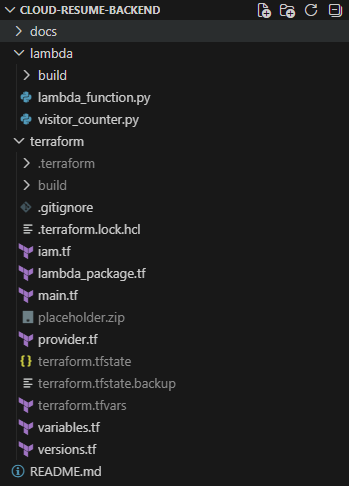 Terraform project structure used to manage the backend infrastructure.
Preparing the Terraform Environment
Before beginning the migration, I configured my local development environment with the tools required to manage infrastructure through Terraform.
Tools used:- Visual Studio Code
- Terraform CLI
- AWS CLI
Phase 1 - Importing Existing Infrastructure
The first phase involved importing the existing AWS infrastructure into Terraform. Instead of recreating resources, Terraform can link configuration files to infrastructure that already exists.
Step 1.1 - Initializing the Terraform Project
I created a Terraform project directory and defined the AWS provider configuration.terraform {
required_providers {
aws = {
source = "hashicorp/aws"
version = "~> 5.0"
}
}
}
provider "aws" {
region = "us-east-1"
}After creating these files, I initialized the project using:
terraform init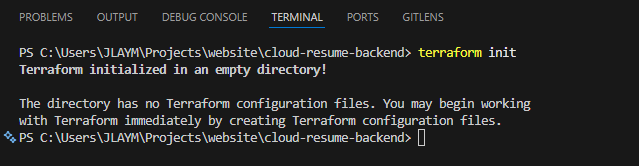 Initializing the Terraform working directory and downloading required providers.
Step 1.2 - Creating Resource Skeletons
Terraform requires a resource block to exist before infrastructure can be imported. To prepare for importing the resources, I created minimal placeholder definitions for the existing infrastructure.
Example DynamoDB definition:resource "aws_dynamodb_table" "visitor_counter" {
name = "MyResumeViewCount"
billing_mode = "PAY_PER_REQUEST"
hash_key = "id"
attribute {
name = "id"
type = "S"
}
}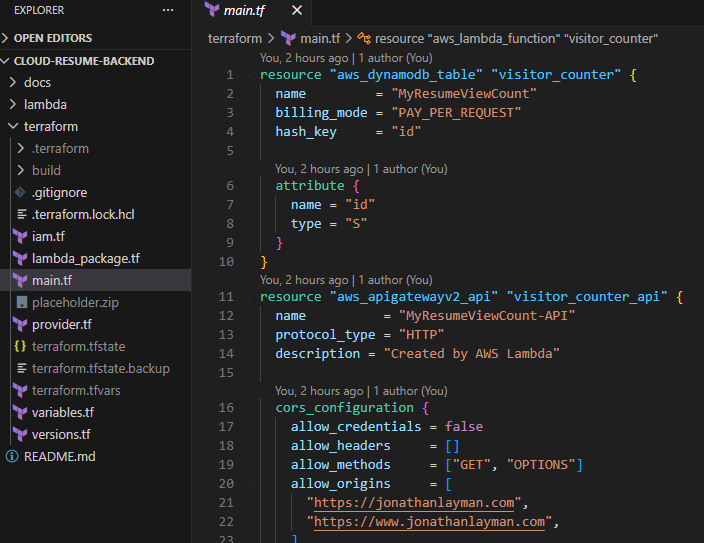 Defining Terraform resource blocks before importing existing AWS infrastructure.
Step 1.3 - Importing Existing Resources
With the Terraform resource blocks defined, I used the Terraform CLI to import the existing AWS resources.
Example import commands:terraform import aws_dynamodb_table.visitor_counter MyResumeViewCount
terraform import aws_lambda_function.visitor_counter MyResumeViewCount
terraform import aws_apigatewayv2_api.visitor_counter_api pzazgc34z6Step 1.4 - Verifying Terraform State
After importing the resources, Terraform stores their information in the state file. To verify the resources were successfully imported, I ran:
terraform state listaws_apigatewayv2_api.visitor_counter_api
aws_dynamodb_table.visitor_counter
aws_lambda_function.visitor_counter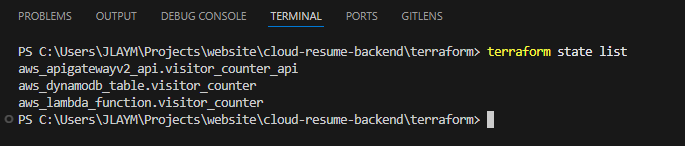 Terraform state showing the imported AWS infrastructure.
Step 1.5 - Reconciling Terraform Configuration
Once resources are imported, Terraform may detect differences between the configuration files and the real infrastructure. To reconcile these differences, I repeatedly ran:
terraform planNo changes. Your infrastructure matches the configuration.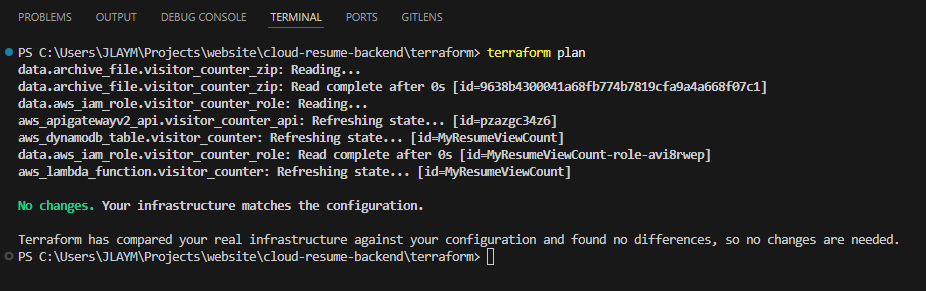 Terraform successfully aligned with the existing AWS infrastructure.
Phase 2 - Automating Lambda Packaging
Once Terraform was managing the infrastructure, I improved the Lambda deployment process. Previously, the Lambda function had been uploaded manually as a ZIP file. Using Terraform, I automated this process using the archive provider.
Example configuration:data "archive_file" "visitor_counter_zip" {
type = "zip"
source_file = "../lambda/lambda_function.py"
output_path = "${path.module}/build/visitor_counter.zip"
}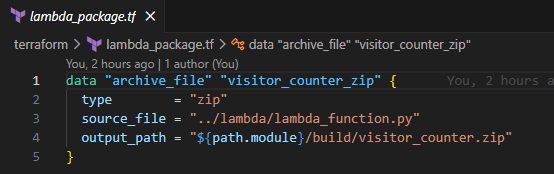 Terraform automatically packaging the Lambda function before deployment.
Protecting the Live Infrastructure
Because the visitor counter Lambda function was already running in production, I added safeguards to prevent Terraform from redeploying the function during the migration.
Example lifecycle rule:lifecycle {
ignore_changes = [
filename,
source_code_hash
]
}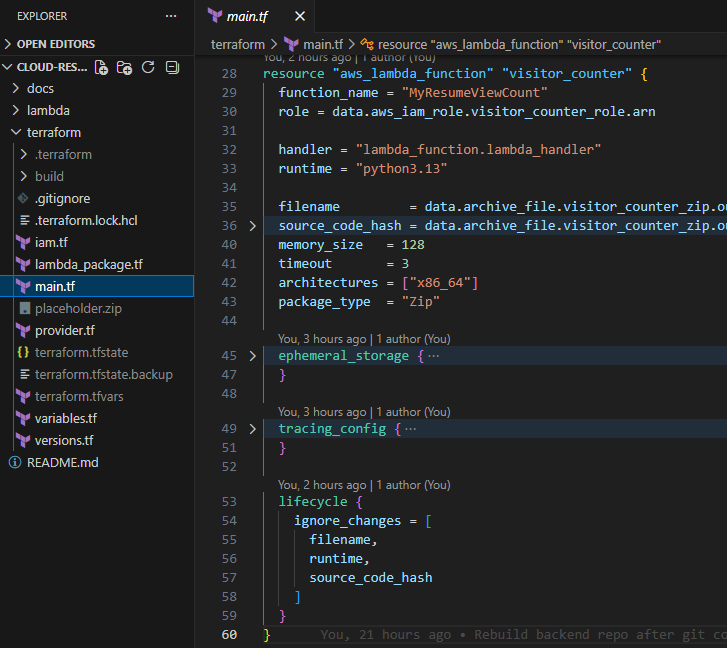 Using lifecycle rules to prevent Terraform from redeploying production code during migration.
Terraform Best Practices Implemented
While migrating the infrastructure, I implemented several Terraform best practices.
Git Ignore Rules
To prevent sensitive information from being committed to GitHub, I added Terraform state files to.gitignore.
Example entries:
terraform.tfstate
terraform.tfstate.*
*.tfvars
build/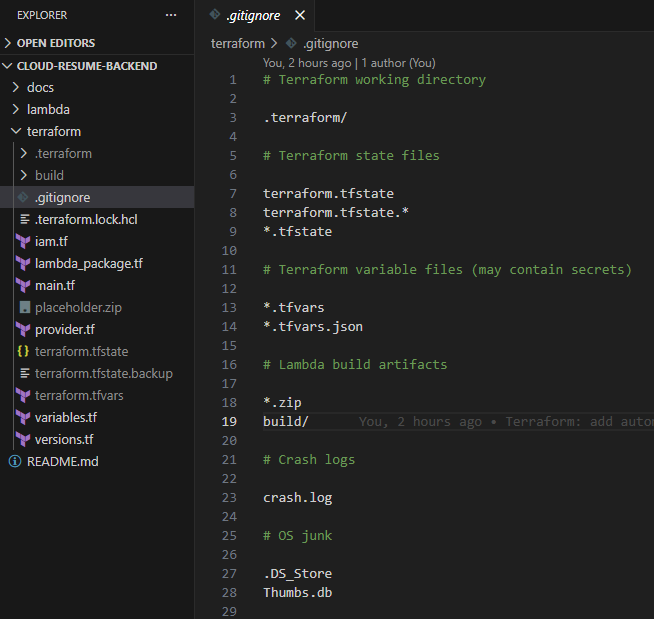 Preventing Terraform state files and sensitive data from being committed to version control.
Final Architecture
After completing the migration, the entire backend infrastructure is now managed through Terraform.
The architecture includes:- S3 - Static website hosting
- CloudFront - Global CDN and HTTPS
- Route 53 - DNS management
- Lambda - Serverless compute
- DynamoDB - Visitor counter database
- API Gateway - Backend API endpoints
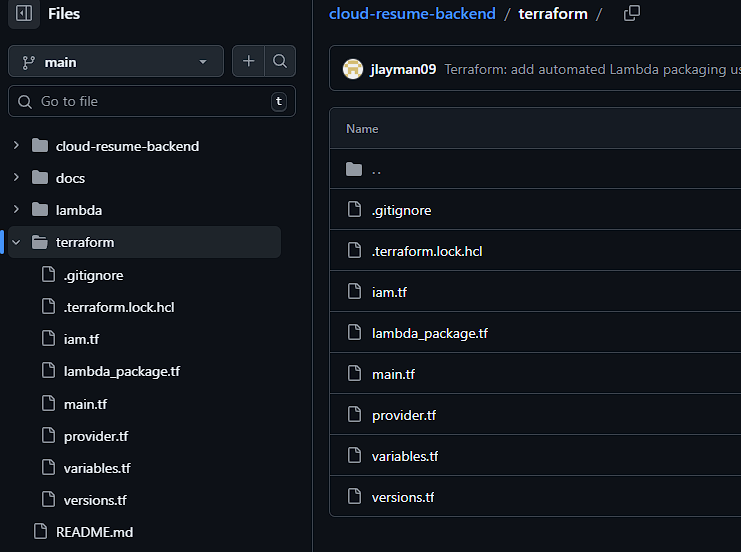 Terraform infrastructure configuration stored in GitHub.
Lessons Learned
Migrating this project to Terraform reinforced several important lessons about managing cloud infrastructure.- Infrastructure Should Be Reproducible - Manual configuration makes infrastructure difficult to replicate. By defining infrastructure in Terraform, the entire backend environment can now be recreated consistently.
- Terraform Import Is Essential for Existing Projects - Many tutorials assume infrastructure will be built from scratch. In real environments, engineers often inherit existing systems. Terraform Import makes it possible to transition those systems into Infrastructure as Code safely.
- State Management Matters - Terraform state files contain critical information about infrastructure. Protecting and managing the state file properly is essential for maintaining stable environments.
- Testing Changes Prevents Production Issues - Running
terraform planrepeatedly helped verify that Terraform accurately reflected the real infrastructure. This step is critical to avoid accidental changes in production environments.
Conclusion
Learning Terraform fundamentally changed how I approach cloud infrastructure. Instead of manually configuring services through the AWS console, the entire backend environment is now described in code. This makes the infrastructure easier to manage, easier to replicate, and far more scalable.
If this environment ever needed to be rebuilt, the entire architecture could be redeployed in minutes using Terraform.
Completing this stage of the Cloud Resume Challenge marks a major milestone. What started as a simple static website evolved into a fully automated serverless cloud architecture managed through Infrastructure as Code.